
This article was originally published on multilingual.com.
Content does not remain accessible automatically when it undergoes translation and layout adjustment. A document may pass every accessibility check in its source language and still fail to meet accessibility standards in the localized version. Localization workflows don’t automatically include re-verification of accessibility features — unless this is built in as a distinct QA step.
This is a risk that is often underestimated, and the regulatory environment has made it more consequential. Since June 28, 2025, the European Accessibility Act (EAA) has required companies offering certain products and services in the EU market — computers and their operating systems (including smartphones), certain self-service terminals, e-books, e-commerce, banking services, and digital elements of passenger transport, among others — to meet defined accessibility standards, regardless of where those companies are based. These obligations apply to consumer-facing offerings; purely B2B services and internal corporate systems generally fall outside the EAA’s scope. For localization teams working with products and services covered by these requirements, decisions made during localization can carry accessibility compliance implications in addition to linguistic ones. Failing to meet these requirements can result in penalties and other enforcement measures.
This article focuses on accessible multilingual documents and presentations, covering Word, PowerPoint, and PDF workflows. It looks at the standards that define accessible content, the most common ways accessibility breaks during localization, and the checks — both automated and manual — that are needed to catch deviations from accessibility requirements, along with practical steps to prevent them from happening in the first place.
Besides the EAA, accessibility requirements are typically shaped by a combination of the following standards and regulations.
WCAG (Web Content Accessibility Guidelines) is the most widely referenced framework. It defines accessibility success criteria across three conformance levels: A, AA, and AAA. In business, enterprise, and public-sector projects, AA is the common target.
PDF/UA is used alongside WCAG for PDF documents specifically. It governs how accessibility should be technically implemented within the file, including document structure, tagging, reading order, navigation, and compatibility with assistive technologies.
Accessibility requirements are also shaped by regional standards and legal frameworks, including EN 301 549 in Europe and Section 508 and the Americans with Disabilities Act (ADA) in the United States.
During localization and desktop publishing, accessibility-related elements can be unintentionally changed, damaged, or lost. A document may still look correct visually while becoming harder to read, navigate, or validate for users relying on assistive technologies. This is most often caused by differences in text length, writing direction, typography, fonts, and layout behavior between the source and target languages.
A common example is text expansion. Localized text may require more or less space than the English source. When the layout is adjusted manually, headings, tables, buttons, navigation elements, or tagged content structures may shift or break. The page may look correct visually, while the reading order or document structure underneath is no longer accurate.
Right-to-left languages, such as Arabic or Hebrew, may require substantial layout adjustments. If the internal structure is not reviewed after formatting, the visual order may appear correct while the actual reading order is incorrect.
Character-based languages, such as Chinese, Japanese, or Korean, may introduce additional challenges related to spacing, line breaking, and font support. If fonts are replaced or embedded incorrectly, the document may become harder to read or may display characters inconsistently across systems.
Accessibility-related metadata also requires localization. This includes alternative text, document language settings, bookmarks, navigation labels, and other hidden elements on which assistive technologies rely.
Accessibility problems may also appear when:
If these issues are not detected before delivery, the final file may fail an accessibility check, require additional remediation, delay approval, or fail client acceptance.
The following project shows how accessibility can be lost in translation, even when the source file is compliant.
A client had translated a set of PDF brochures from an accessible English InDesign source into Mexican Spanish, Chinese, Arabic, Hmong, and Vietnamese. Translation was handled separately, and accessibility was not preserved during the localization process. The client required each language version to be delivered as an accessible, ADA-compliant PDF.
Restoring compliance for each language version involved the following steps:
The source file’s accessibility did not transfer to the localized versions automatically. Each language version required a dedicated accessibility pass before it could be considered ADA-compliant.
Many applications include built-in accessibility checking tools that help identify common issues before final delivery.
For Microsoft Word and PowerPoint files, the built-in Accessibility Assistant can help detect issues related to document structure, alternative text, tables, metadata, and other accessibility-related settings.
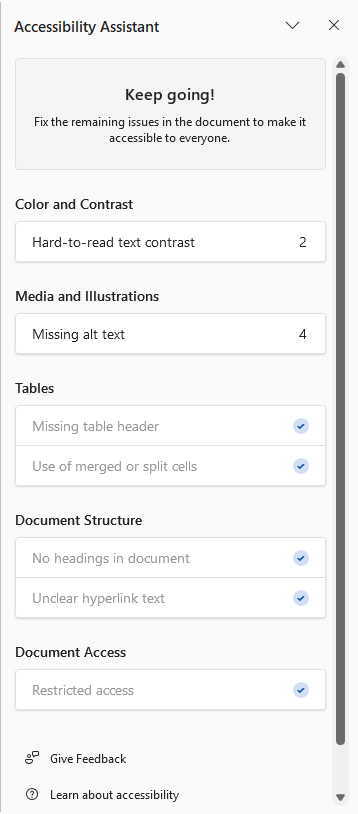
Microsoft Word
Accessibility Assistant |
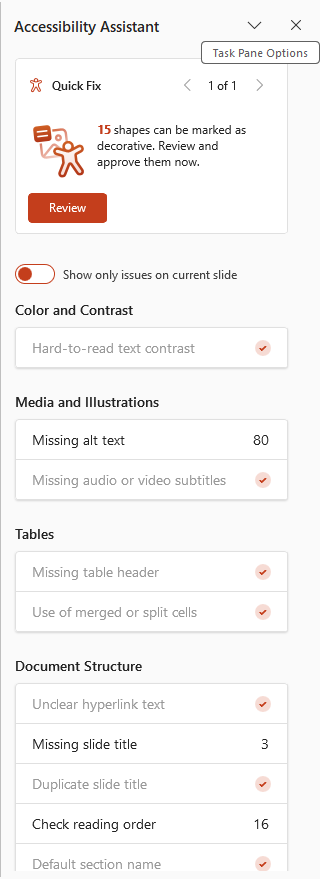
Microsoft PowerPoint
Accessibility Assistant |
For PDF files, Adobe Acrobat Pro can help verify whether the file contains proper tags, a logical reading order, alternative text, document language settings, table structure, bookmarks, and other accessibility elements.
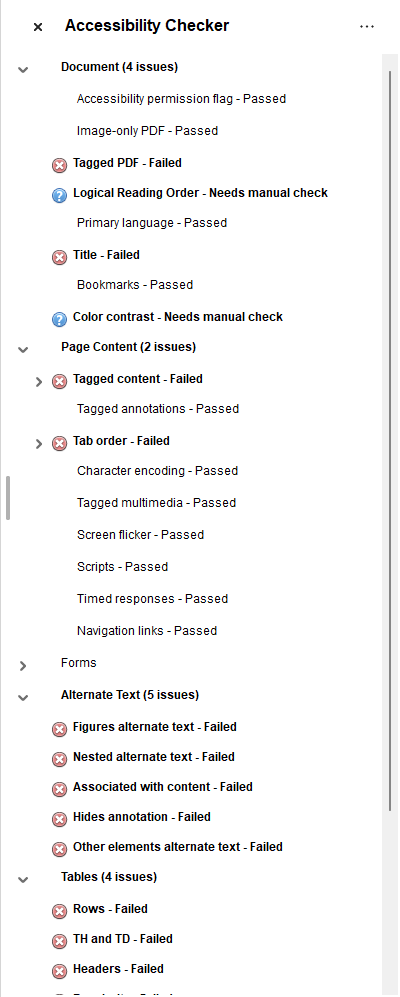
Adobe Acrobat Pro Accessibility Checker
Additional validation tools, such as PAC (PDF Accessibility Checker), CommonLook PDF Validator, or veraPDF, may also be used when PDF/UA or more specific accessibility requirements apply. These tools can detect structural issues that are not visible during a visual review.
However, automated checks are not sufficient on their own. A file may pass automated tests and still contain issues that affect real users. For complex layouts, multilingual documents, and PDFs whose layouts are reformatted after translation, manual QA is often required to review document structure, reading order, alternative text, and final export quality.
PDF is one of the most common formats for multilingual communication, technical documentation, reports, manuals, and regulated content. It is also one of the most sensitive formats from an accessibility perspective.
The main risk is that a visual review alone is not sufficient. A PDF may appear clean and well-formatted while still containing broken tags, an incorrect reading order, missing alternative text, or incorrect language settings within the file structure.
After localization and layout formatting, PDF validation may include a manual check of the following elements:
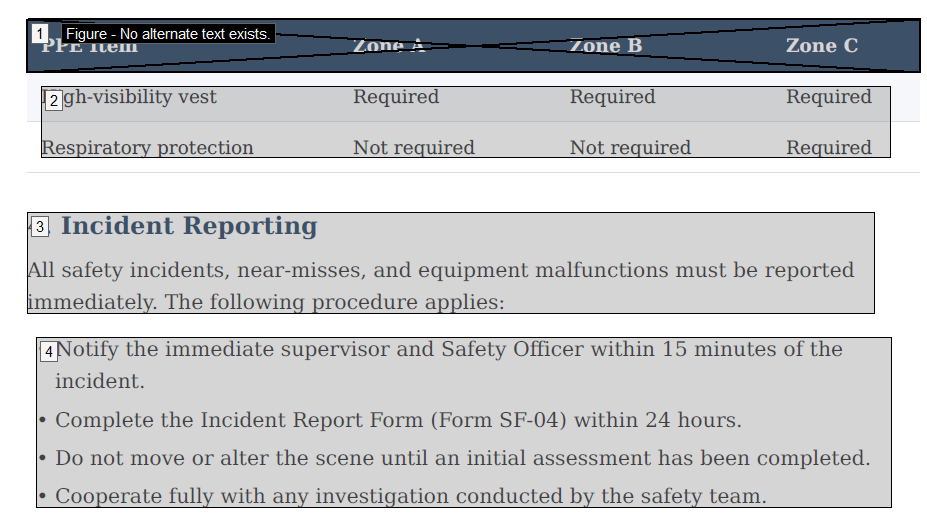

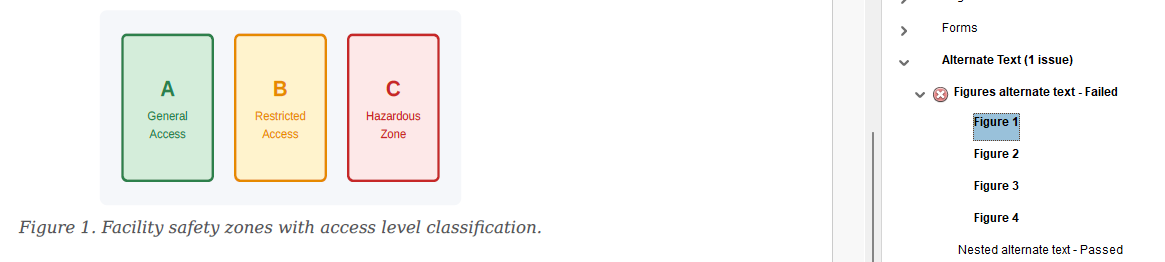
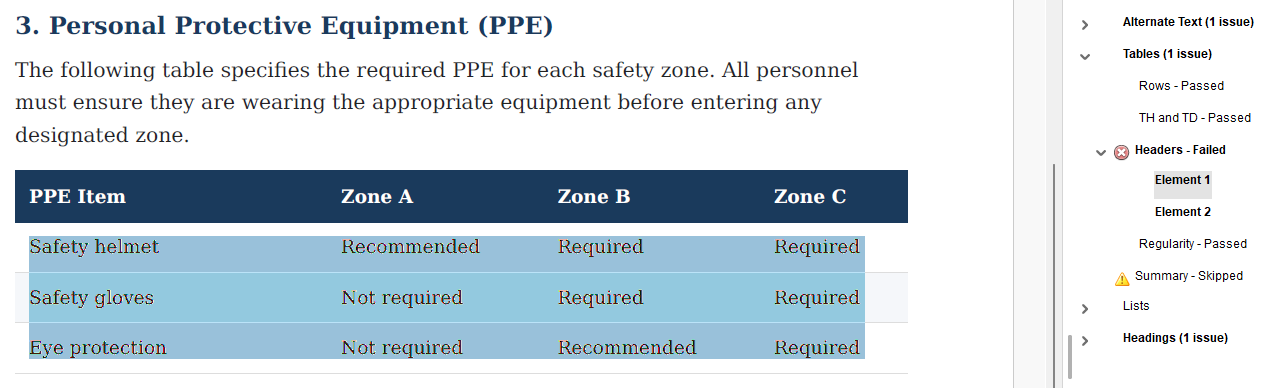
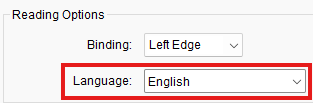
If any of these elements are damaged during formatting or export, the document may require remediation before it can be considered accessible. This is why PDF accessibility should be validated for each localized version before final delivery rather than assumed based on the source file’s compliance.
The following practices help reduce the risk of accessibility issues appearing after localization.
An accessible source file does not guarantee an accessible localized version. To keep content accessible through localization, you should verify structure, tags, reading order, and metadata for each language version through both automated tools and manual checks.
The EAA is not an isolated development. Canada has finalized the Digital Technologies Accessibility Regulations under the Accessible Canada Act, and Australia has updated its Human Rights Commission guidance under the 1992 Disability Discrimination Act.
For LSPs and corporate localization departments, this shift is already visible in procurement. Accessibility competence is increasingly listed as a selection criterion in tenders and vendor evaluations, alongside language coverage and turnaround time.
Now is a reasonable moment to review whether accessibility validation has its own distinct place in your QA process, alongside existing language and formatting checks.